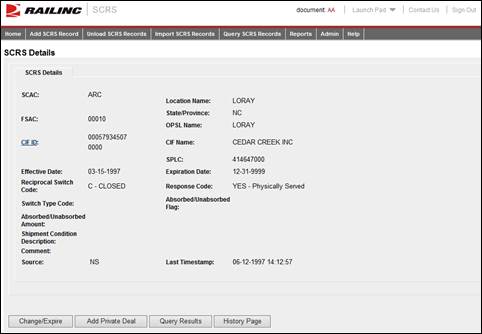
Here is how to manage SCRS Details.
1. Access a SCRS Details record (see Querying SCRS Records). The SCRS Details page is displayed.
Exhibit 23. Manage SCRS Details
2. Perform one of the following actions.
a. Select Change/Expire to change/expire the displayed Charge Details (see Changing/Expiring a SCRS Record).
b. Select Add Private Deal to add a private deal. This process is the same as Adding a New SCRS Record except that Reciprocal Switch Code field must indicate R-Restricted (see Adding a New SCRS Record).
c. Select Resend to resend the charge record. A message is displayed informing you of the status of the resend request.
d. Select Query Results to return to the SCRS Query Results page (see Exhibit 19. SCRS Query Results Page).
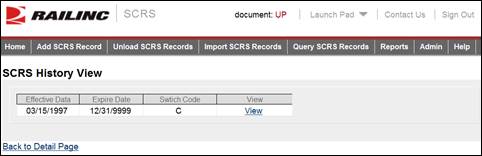
e. Select History Page to view the history of the displayed charge details. The SCRS History View page is displayed. From there you can select the View links of the displayed history records to display their associated SCRS Charge Details.
Exhibit 24. SCRS History View
Here is how to change/expire a SCRS Record.
1. Access a SCRS Details record (see Querying SCRS Records). The SCRS Details page is displayed. Select Change/Expire. A Change/Expire input page is displayed.
Exhibit 25. Change/Expire input
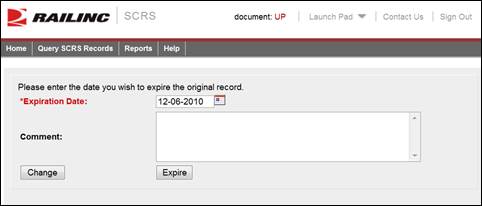
2. Enter the date you wish to expire the original record.
3. Add a Comment (optional).
4. Perform one of the following actions:
a. Select Change to make changes to the displayed record. The original record will be expired. You will be directed to edit the page to make changes and to re-add.
b. Select Expire to expire the selected record.