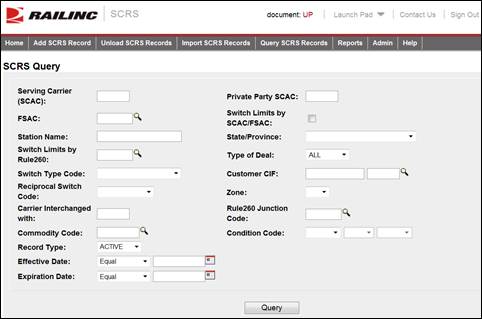
The Query Screen contains multiple ways to query the SCRS database. The Record Type defaults to "Active" to return only active records. The user may change this to search inactive records.
When a SCAC is specified then the specified SCAC is used. The query returns records for all SCACs when no SCAC is specified.
There are two options to set switch limits.
1. Enter SCAC, FSAC and to select the Switch Limits by SCAC/FSAC box. This will return all SCRS records within the switch limits for the entered SCAC/FSAC.
OR
2. Enter the Switch Limits by Rule 260. This will return all SCRS records within the switch limits for the entered Rule260.
Here is how to Query for SCRS Records.
1. From the application menu, select Query SCRS Records. The SCRS Query page is displayed.
Exhibit 18. SCRS Query Page
2. Complete the available input fields.
3. Select Query. The SCRS Query Results page is displayed.
Exhibit 19. SCRS Query Results Page
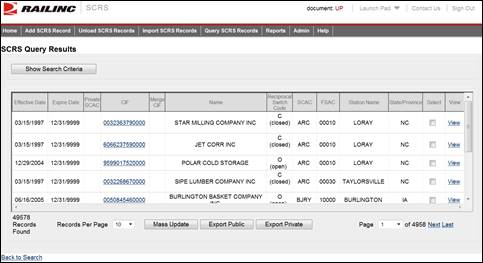
4. Complete one of the following actions:
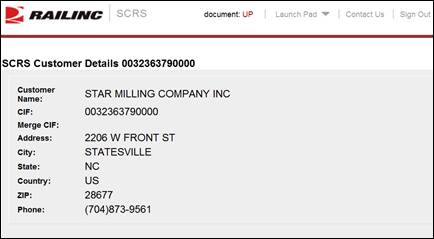
a. Select a listed CIF number to view the SCRS Customer Details for that company in a pop-up box.
Exhibit 20. SCRS Customer Details
b. Select the view link for a listed record to view its full charge details (see Managing SCRS Details).
c. Select the merge CIF number to perform a search for active SCRS records with that CIF number.
d. Select one or more listed records and select Mass Update to perform an update to all selected records at once (see Performing a Mass Update).
e. Select one or more public records and select Export Public to export the selected records. A pop up box is displayed allowing you to save the records in .csv format.
f. Select one or more private records and select Export Private to export the selected records. A pop up box is displayed allowing you to save the records in .csv format.
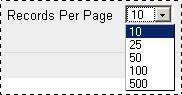
g. Change the number of records that appear on the page by using the records per page dropdown.
Exhibit 21. Records per Page dropdown
h. Navigate the page that you’re viewing by using the options available on the page dropdown or the Next/Last links.
Exhibit 22. Page Navigation options

i. Select the Back to Search link to return to the SCRS Query page.